How to Organize Passwords in Folders to Avoid Lockouts
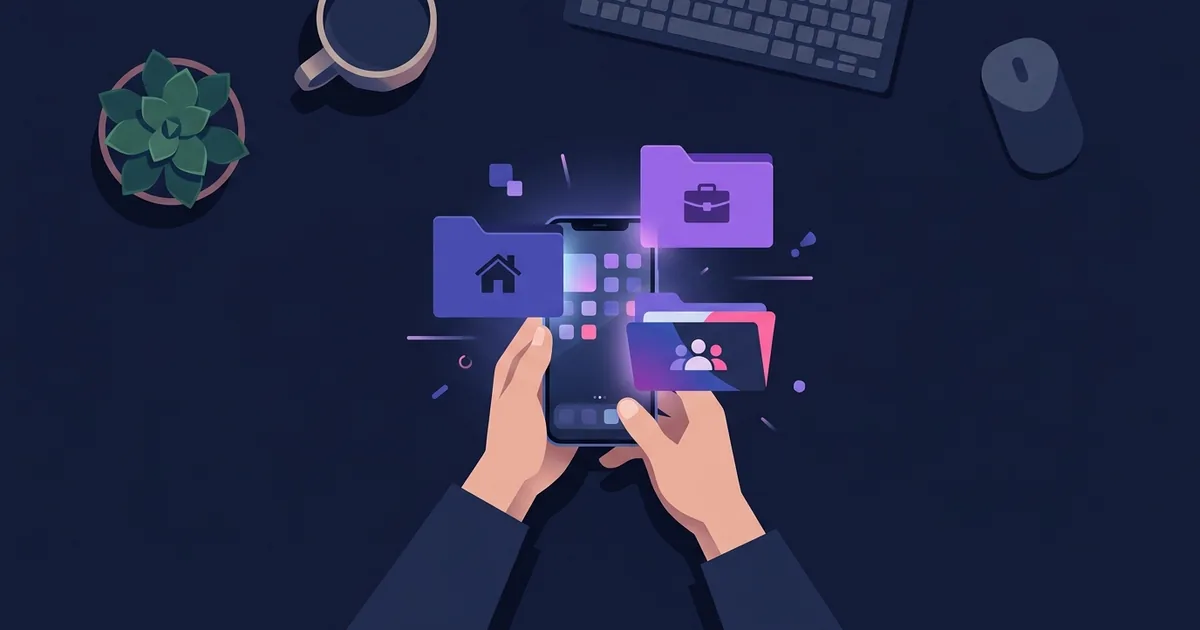
Getting locked out of an account because you forgot a password is a major disruption. Organizing passwords by folders makes it easy to find what you need quickly, whether it is a bank login, a utility account, or a Wi-Fi key.
Why Sorting by Folders Works Better Than a Big List
Scrolling through hundreds of unsorted passwords to find one specific login is frustrating, especially when you are in a hurry. When you dump everything into one long list, you waste time trying to remember exactly how you named an entry. Did you save it under the provider's name, or the service type? Organizing your passwords into specific folders based on areas of your life solves this problem. If you need your electricity account login, you know exactly which folder to open. This method reduces friction, prevents duplicate entries, and keeps you from guessing when you need access fast.
Essential Folders to Create First
To get started on how to organize passwords effectively, set up a few broad folders. This keeps your system simple and easy to maintain.
- Banking and Finance: Keep all your checking, savings, and credit card logins here. You can also include access credentials for your accountant, tax payment portals, and investment accounts. Having these in one place is helpful when you are paying monthly bills or reviewing statements. Rules vary by state, so if you store tax information, check with an accountant on what records you must keep accessible.
- Work and Business: If you are a freelancer or manage a small team, separate your work logins from your personal ones. Include access to professional email accounts, client management tools, and business supply vendors.
- Home and Utilities: This folder is for the services that keep your house running. Add your water, electricity, and internet provider logins. It is also the perfect place for your home Wi-Fi network name and password.
- Streaming and Subscriptions: Group all your movie, music, and digital newspaper logins here. These are the accounts you access frequently on different devices, so having them in one dedicated spot saves time.
What to Keep Besides Passwords
A password folder system is not just for web logins. You can use it to organize other private data that you need to reference quickly.
- Physical Codes and PINs: Store the keypad code for your garage, the alarm PIN, or the gate code for your neighborhood. You can also keep the combination for your gym padlock.
- Membership and Reward Numbers: Keep track of frequent flyer numbers, grocery store loyalty cards, and gym member IDs. Having these handy means you never miss out on points or access.
- Important Document Numbers: You do not always need to carry physical documents. Store your passport number, driver's license details, and social security or national ID numbers. This is useful when you are booking flights or filling out government paperwork.
Sharing Passwords With Family
Sharing accounts with a partner, family member, or roommate is common, especially for utilities and streaming services. However, sharing passwords via text message means they easily get lost in the chat history. Instead, keep a clear system for shared entries. If you manage the household internet, store the provider login in your Home folder and share that specific entry with your partner. When you update the password, make sure the shared entry is updated too. This ensures that when your partner tries to log in to pay a bill or fix the Wi-Fi, they are not locked out due to an old password.
Habits to Avoid Lockouts
Even the best folder system will fail if you do not maintain it. Adopting a few simple habits ensures you always have the right password when you need it.
- Update immediately: The moment you change a password, update the entry in your folder. Do not tell yourself you will do it later, because you will likely forget.
- Log it on creation: When you sign up for a new service, create the entry before you even confirm the email address.
- Be consistent with naming: Name your entries clearly. Use the actual brand name of the service rather than a generic term so you can spot it immediately when scanning the folder.
Mentu Tasks & Notes is an app for iPhone and iPad made by Jabez Software that helps you organize your daily life. It includes a vault that stores passwords and other private data, organized in folders like Banks, Work, or Streaming, where entries are encrypted on the device and an entry can be shared with a follower.
Taking the time to categorize your digital life prevents the stress of forgotten logins and locked accounts. A reliable system keeps your details organized, easy to find, and ready whenever you need them. For more details on keeping your data sorted, check out how to use a password vault.